Print Batched Paper Claims on a HCFA Form or on Plain Paper
Print a Claims Batch
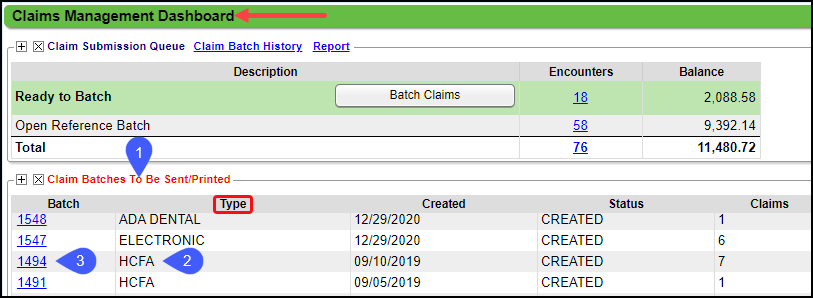
After batching your Claims, on the Claims Management Dashboard, go to the Claim Batches to Be Sent/Printed panel.
This panel does not include Batches that contain Encounters in a more recent Batch.
Find the batch with Type HCFA.
Select the Claims Batch number.
Select the Print On HCFA or the Print on Plain Paper button.
- If printing on HCFA or UB Form, load the Forms in the printer.

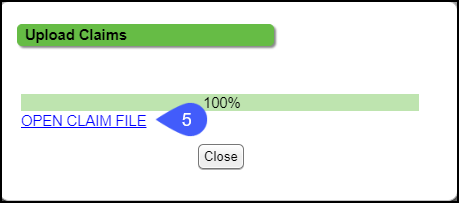
Select Open Claim File.
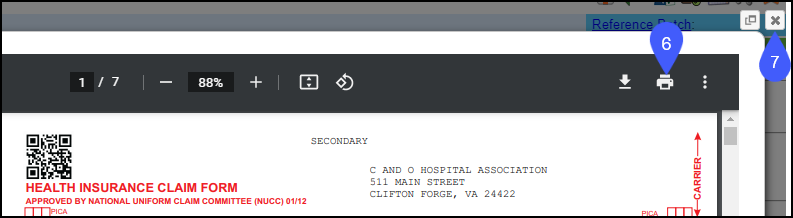
Select the printer icon on the PDF to print the claims in this batch.
Close the screen after printing.
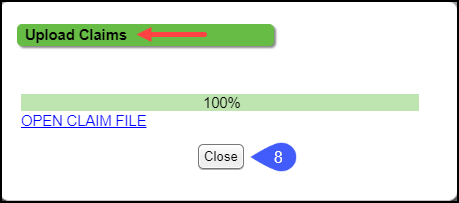
Close the Upload Claims screen.
Learn More
Print Paper Claims on HCFA/UB
Print One Paper Claim
Print EOB for Manually Posted Payments
Print/View an EOB for an ERA
Troubleshoot Printing Problems