Copay and Payment on Account Balance
Enter Copay from the Appointment Dashboard
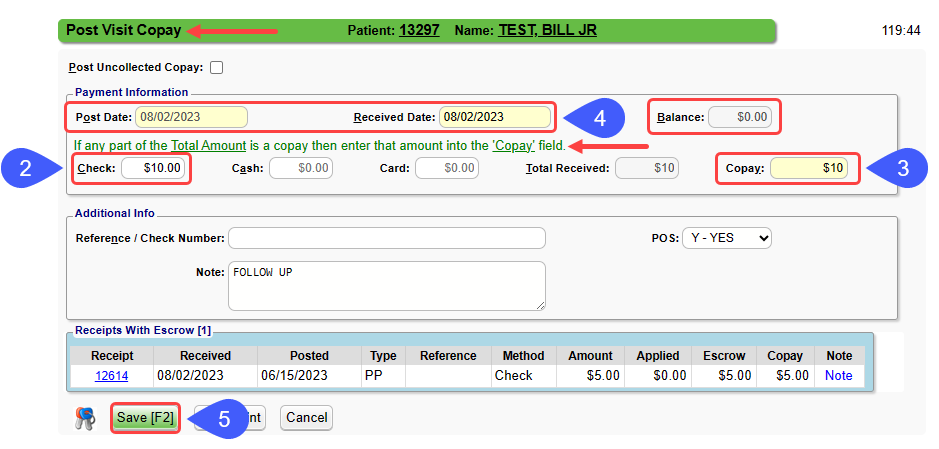
- On the Patient's Appointment, select Enter Payment.
- In the Check, Cash, or Card fields enter the full amount received.
- In the Copay field, enter only the Copay amount.
- If this contains a Payment on Account, do not include that amount in the Copay field.
- Complete any other applicable fields.
- Select Save [F2].
Enter Copay on the Appointment from the Patient Dashboard
- Select the Appointment Date link in the Patient Appointments panel.
- On the Calendar, select the Patient's Appointment (flashing).
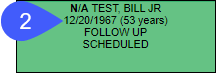
- Follow the Appointment Dashboard instructions above.
Enter Copay from the Patient Dashboard
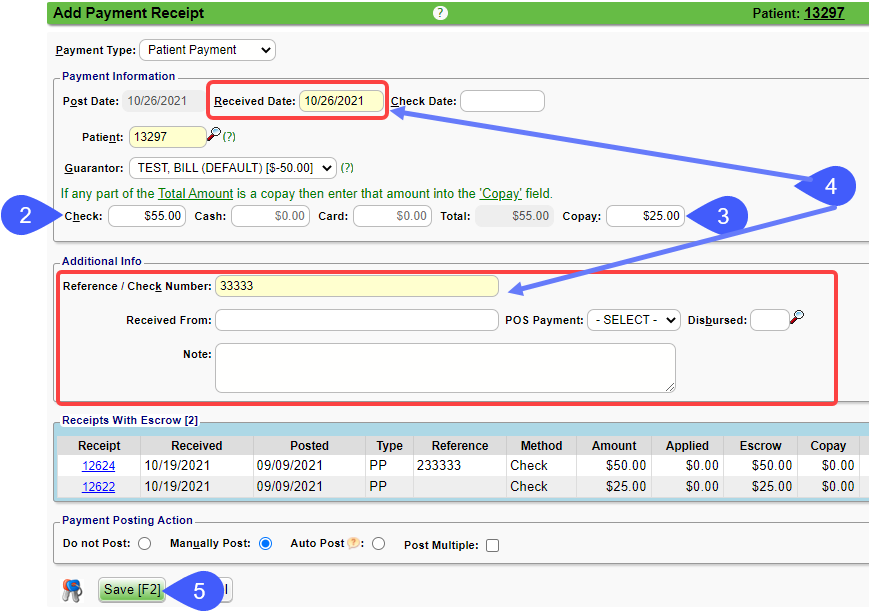
- On the Patient Dashboard, select the Post Payment link.
- In the Check, Cash, or Card fields enter the full amount received.
- In the Copay field, enter only the copay amount.
- If this contains a Payment on Account, do not include that amount in the Copay field.
- Complete any other applicable fields.
- Select Save [F2].
Enter Copay from the Encounter Dashboard
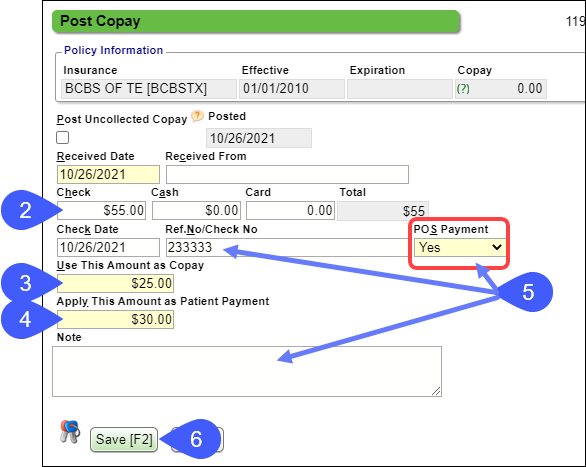
- If an Encounter has already been created, select Post Copay on the Encounter Dashboard.
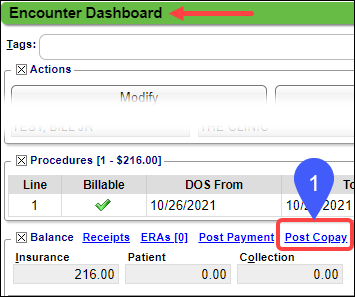
- Enter the full received amount in the Check, Cash, or Card fields.
- Use This Amount as Copay: Enter the amount of the Copay only.
- Apply This Amount as Patient Payment: Enter the amount to apply to the Patient's Account.
- The sum of the copay and the payment on the account should equal the total receipt amount.
- Complete any applicable other fields.
- Select Save [F2].
Learn More